A 6-minute coding tutorial usually starts life as 20 minutes of raw screen recording. There's a pause while you find the right tab, a test suite that takes 40 seconds, a typo you fix live, and two restarts of the same sentence.
Editing that by hand is where most developer screencasts die. You record, you dread the edit, and the video never ships.
Here are seven tools that make the edit fast, from AI editors to a 40-line ffmpeg script, and a workflow that works with any of them. None of it needs Premiere.
What matters when editing a screen recording
- Silence and retakes removed automatically. That's most of the waste.
- Cutting by meaning, not just volume. Filler words and repeated takes aren't silent.
- Reviewable cuts. An automatic cut that hides your command output is worse than no cut. You want to see each cut and undo just that one.
- Captions as files (SRT/VTT), not only burned in.
- No face needed. Most screencasts are just the screen and your voice.
1. MirrorCut: an AI first cut you can review cut by cut (our tool)
MirrorCut is an AI agent that edits your recordings in the browser. It works on screen recordings with only a voice-over and no face on camera. You upload the recording and the agent makes the first cut: it removes dead air, filler words, retakes and false starts.
- Review and undo: every AI change is outlined on the timeline with a one-line reason and its own Accept and Revert. If it cut the pause where your test output appears, you revert that one cut and keep the rest. AI edits and your own edits share one undo history.
- Captions and outputs: auto captions in 48 styles that stay in sync after cuts; export MP4 up to 4K, plus SRT and VTT. Long video to Shorts is a built-in step.
- Price: Creator $10/month, Pro $30, Studio $60. Every plan has every feature (pricing).
- Not the right pick if: you want zoom and cursor effects applied while you record (see #3 and #4), you finish in an NLE (no NLE project export today), or you'd rather pay nothing and script it (#6, #7).
- Best for: developers who want the first 80% done for them and a quick review of the rest.
2. Descript: edit the recording like a doc
Descript turns your recording into a transcript you edit like text. Its chat co-editor Underlord (labelled beta) handles Remove Filler Words, Remove Retakes and captions.
- Review and undo: Underlord creates a checkpoint you can revert to; per Descript's help docs, checkpoints last only for the current session (help).
- Hand-off: timeline export to Premiere, Final Cut Pro and others.
- Price: Free (60 media minutes a month, 720p export); Hobbyist $24/month or $16 billed annually (pricing).
- Best for: transcript-first editing, and anyone who finishes in an NLE.
3. Camtasia: the classic screen-recording editor
Camtasia is TechSmith's desktop recorder and editor for Windows and macOS.
- What it does: text-based editing and filler word and hesitation removal (via Audiate), captions you can export in subtitle formats, AI noise removal, and automatic cursor effects (Screentelligence).
- Price: a free editor that watermarks exports; paid plans are Essentials, Create and Pro (see TechSmith's pricing page for current prices).
- Best for: teams making polished training and software tutorials on the desktop.
4. Screen Studio: good-looking recordings by default (macOS)
Screen Studio is a macOS recorder that makes recordings look edited as you capture them.
- What it does: automatic zooms and cursor smoothing, editing by transcript, removing filler words and pauses, captions with SRT export, and MP4 up to 4K in 16:9, 1:1 or 9:16. Processing is local.
- Price: $29/month, every feature on every plan.
- Best for: Mac users making product demos where zoom and cursor polish matter.
5. Loom (Business + AI): quick async videos
Loom is built for quick, shareable screen recordings for your team.
- What it does: on the Business + AI plan, filler word removal, silence removal and editing by transcript.
- Price: Starter is free (25 videos, 5-minute recordings, 720p). Business is $18 and Business + AI $24, per user.
- Best for: internal walkthroughs and PR demos rather than public tutorials.
6. auto-editor: an open-source CLI first pass
auto-editor is a command-line app that cuts out "dead space", typically silence, as a first pass: auto-editor path/to/your/video.mp4.
- What it does: cuts by audio loudness by default, can cut by motion instead (or both), and
--marginkeeps a little padding around each cut so the edit feels natural. - Price: free and open source.
- Best for: developers who want a mature, scriptable silence cutter without writing one.
7. A 40-line ffmpeg script you own
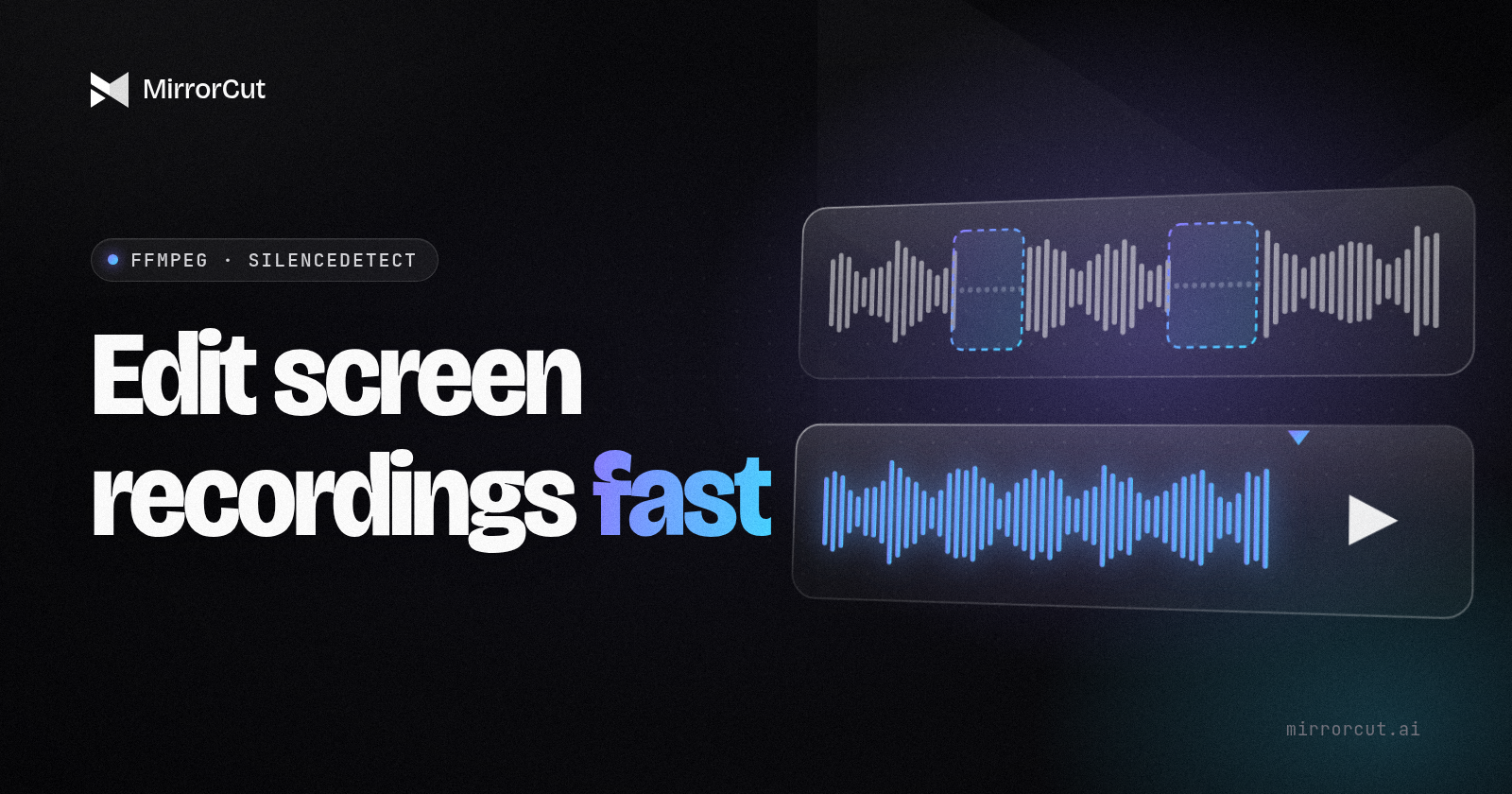
If you'd rather see every line, ffmpeg's silencedetect filter reports where the quiet stretches are. This script turns that report into "keep" segments and renders a new file with the long pauses removed. I tested it on ffmpeg 7.1 with Python 3.
#!/usr/bin/env python3
"""Cut long pauses out of a screen recording with ffmpeg.
Usage: python3 trim_silence.py input.mp4 output.mp4
"""
import re, subprocess, sys

src, out = sys.argv[1], sys.argv[2]
NOISE = "-35dB"   # what counts as silence
MIN_GAP = 0.8     # only cut pauses longer than this (seconds)
PAD = 0.15        # keep a little air on each side of a cut

# 1. Ask ffmpeg where the silences are.
log = subprocess.run(
    ["ffmpeg", "-hide_banner", "-i", src,
     "-af", f"silencedetect=noise={NOISE}:d={MIN_GAP}", "-f", "null", "-"],
    capture_output=True, text=True).stderr
starts = [float(x) for x in re.findall(r"silence_start: ([\d.]+)", log)]
ends = [float(x) for x in re.findall(r"silence_end: ([\d.]+)", log)]
dur = float(subprocess.run(
    ["ffprobe", "-v", "error", "-show_entries", "format=duration",
     "-of", "csv=p=0", src], capture_output=True, text=True).stdout)

# 2. Turn silences into the segments we keep.
keep, cursor = [], 0.0
for s, e in zip(starts, ends + [dur] * (len(starts) - len(ends))):
    if s - cursor > 0:
        keep.append((cursor, min(s + PAD, dur)))
    cursor = max(e - PAD, 0.0)
if dur - cursor > 0.05:
    keep.append((cursor, dur))

# 3. Keep only those segments, video and audio together.
expr = "+".join(f"between(t,{a:.3f},{b:.3f})" for a, b in keep)
subprocess.run(
    ["ffmpeg", "-y", "-hide_banner", "-loglevel", "error", "-i", src,
     "-vf", f"select='{expr}',setpts=N/FRAME_RATE/TB",
     "-af", f"aselect='{expr}',asetpts=N/SR/TB", out], check=True)
print(f"kept {len(keep)} segments, {sum(b - a for a, b in keep):.1f}s of {dur:.1f}s")
On a test file with 11 seconds of audio containing two gaps (2 s and 3 s), it printed kept 3 segments, 6.6s of 11.0s. That's exactly the two pauses removed, with a little padding left in.
Tuning tips:
NOISE: if it cuts your quiet words, lower it (for example-45dB). If it misses pauses because of fan noise, raise it (-30dB).MIN_GAP: for tutorials, 0.8–1.2 s feels natural. Lower values make it choppy, which suits Shorts, not lessons.PAD: 0.1–0.2 s stops words from getting clipped.
What the script can't do: it doesn't understand meaning. It will cut the silence while a command's output scrolls past, and that's often the moment you want viewers to see. It also can't spot retakes or filler words like "um", because those aren't silent.
- Price: free.
- Best for: learning how silence cutting works, or dropping it into your own pipeline.
Side-by-side
| Tool | Runs | Removes silence | Filler words / retakes | Review per cut | Captions as files | Cost to start* |
|---|---|---|---|---|---|---|
| MirrorCut | Browser | Yes | Yes / Yes | Accept/Revert per change | SRT, VTT | $10/mo |
| Descript | Desktop and web | Yes | Yes / Yes | Checkpoint revert (session only) | Yes | Free; $24/mo ($16 annual) |
| Camtasia | Windows, macOS | Hesitations (Audiate) | Fillers (Audiate) / See TechSmith | In the editor | Yes | Free (watermark); paid plans |
| Screen Studio | macOS | Pauses | Fillers | In the editor | SRT | $29/mo |
| Loom Business + AI | Web, desktop | Yes | Fillers | In the editor | See Loom | $24/user/mo |
| auto-editor | CLI | Yes | No | Re-run with new settings | No | Free |
| ffmpeg script | CLI | Yes | No | Re-run with new settings | No | Free |
*Checked Oct 25, 2026, from each tool's own pages.
Which one should you pick?
- You want an AI first cut and a fast review, in the browser: MirrorCut.
- You finish in Premiere or Final Cut: Descript.
- You make polished training videos on Windows or Mac: Camtasia.
- You're on a Mac and want zooms and cursor polish while you record: Screen Studio.
- It's an internal walkthrough, not a public tutorial: Loom.
- You want free and scriptable: auto-editor, or the ffmpeg script if you want to own every line.
A workflow that works with any of them
Record so the edit is easy
Most editing time is caused at record time. Five habits save more than any tool:
- Make the screen readable first. Font size 18–20 pt in your editor and terminal, because viewers watch on phones. Record at 1920×1080 (or a 1080p crop of a bigger screen); a 4K desktop scaled down makes code tiny. Hide notifications, bookmarks, other tabs and
.envfiles. Blurring secrets in the edit takes far longer than closing the file. - Use a real mic in a quiet room. Viewers forgive average video, not bad audio. Any USB mic close to your mouth beats a laptop mic across the desk, and silence detection works much better when "silence" is actually quiet.
- Script the steps, not the words. A checklist ("install, configure, first request, error handling") keeps you on track and still sounds natural.
- Pre-run anything slow. If
docker buildtakes 3 minutes, run it before you record, or say "this takes a few minutes, I'll skip ahead" and cut it. - Mark your retakes out loud. When you fumble, pause for two seconds and say "again" before restarting the sentence. The pause shows on a waveform and the word is searchable in a transcript.
Review only the cuts that matter
Whichever tool you use, don't rewatch the whole thing at 1x:
- Scrub the cuts near code changes. Check two seconds either side for a cut that hides a command's result, makes code "teleport" mid-typing, or removes the pause after "notice that…". Restore those.
- Speed up, don't cut, long waits. A 4x–8x speed-up on an install keeps cause and effect visible.
- Zoom where your eyes go, with restraint: when it explains something, not on every click.
- Export captions as SRT or VTT as well as burned in. SRT goes to YouTube; VTT works with HTML5
<track>in your docs.
One recording, several outputs
- Docs version (16:9): the full tutorial, with chapters in the description.
- Shorts (9:16): one "aha" moment each, pulled from the edited version so they inherit the clean cuts.
- README GIF or clip: 10–20 seconds of the result, no voice needed.
A warning about vertical crops: a 9:16 frame cut from a 16:9 screen recording only shows about a third of the width. Put the key code in one area of the screen when you record, or zoom in before you crop.
Applied consistently, this turns "I'll edit it this weekend" into "I'll ship it tonight".
If you try the ffmpeg script, tell me what NOISE and MIN_GAP values worked for your mic. I'll collect them into a table. And if you'd rather have an AI do the first pass, MirrorCut is at mirrorcut.ai.
Sources (checked Oct 25, 2026)
- MirrorCut: https://www.mirrorcut.ai · https://www.mirrorcut.ai/pricing
- Descript pricing: https://www.descript.com/pricing · Underlord revert: https://help.descript.com/ai-assistant/revert
- Camtasia: https://www.techsmith.com/camtasia/
- Screen Studio: https://screen.studio
- Loom pricing: https://www.loom.com/pricing
- auto-editor: https://github.com/WyattBlue/auto-editor
- ffmpeg silencedetect: https://ffmpeg.org/ffmpeg-filters.html#silencedetect
Comments
Join the discussionNo comments yet. Be the first to comment.